📺 Complete Guide
Strong IPTV Setup & Installation Guide
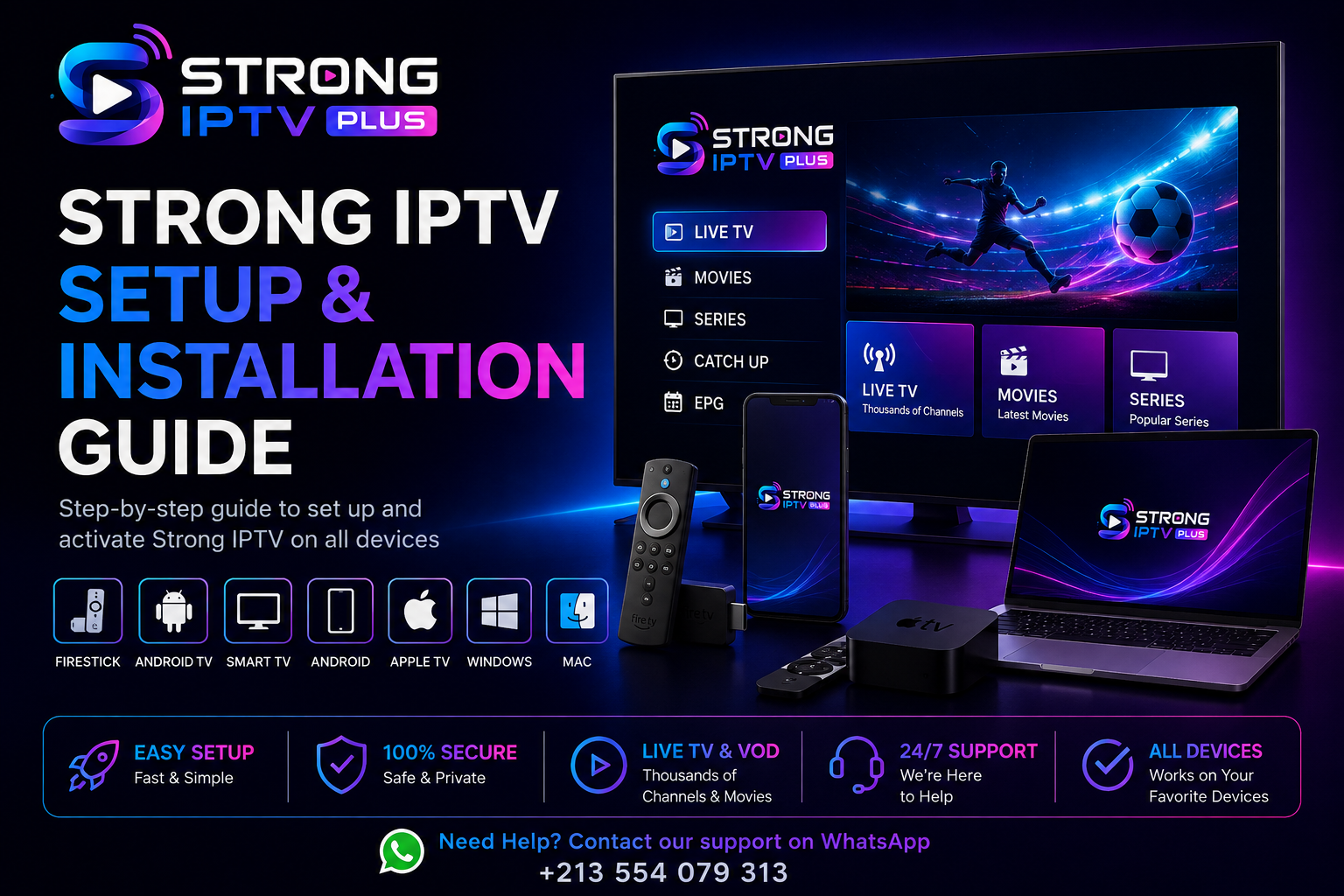
Learn how to set up and activate Strong IPTV on Firestick, Smart TV, Android TV, Apple TV, Android, Windows and Mac. This step-by-step guide covers installation, activation and basic troubleshooting to help you get started quickly.
Get Strong IPTV
Test Now — Totally Free
Want to test before you commit? Try Strong IPTV for free on WhatsApp.
📖 Table of Contents
Getting Started With Strong IPTV
Strong IPTV gives you access to thousands of live TV channels, movies, and series from around the world. Setting up your subscription is straightforward, and this guide will walk you through every step.
Whether you're using a Firestick, Android TV, Smart TV, Apple TV, or a computer, the setup process follows a similar pattern. Here's a quick overview of how to get started:
- Choose a subscription — Select the plan that fits your needs.
- Complete secure checkout — Payment is processed through our secure system.
- Receive your activation details — You'll get an email with your credentials.
- Install a compatible IPTV player — Use a supported app for your device.
- Enter your credentials — Enter the details you received.
- Start watching — Load the service and begin streaming.
Not sure which plan to choose? Explore our subscription options:
How Strong IPTV Activation Works
Activating your Strong IPTV subscription is simple. Once you've completed your purchase, you'll receive an email with your activation details. Here's what to expect:
1
Choose Your Plan
Select the subscription that's right for you — 1, 3, or 12 months.
2
Complete Checkout
Pay securely through our Jotform checkout process.
3
Receive Activation Details
Get your login credentials and setup information by email.
4
Install & Enter Credentials
Install a compatible IPTV player and enter your details.
5
Start Streaming
Load the service and enjoy thousands of channels and VOD.
For detailed activation support, you can always reach out via WhatsApp.
How to Set Up Strong IPTV on Firestick
Setting up Strong IPTV on your Amazon Firestick is straightforward. Follow these steps to get started:
- Connect your Firestick — Plug it into your TV and connect to Wi-Fi.
- Install a compatible IPTV player — Use Downloader or the Amazon Appstore to install a supported IPTV player.
- Open the IPTV player — Launch the application on your Firestick.
- Enter your activation details — Use the credentials provided in your confirmation email.
- Load the service — The application will connect to the server and load your channels.
- Start watching — Browse through the channel list and begin streaming.
Tip: For the best experience, ensure your Firestick is connected to a stable Wi-Fi network or use an Ethernet adapter for a wired connection.
How to Set Up Strong IPTV on Android TV
If you have an Android TV or Google TV device, setting up Strong IPTV is quick and easy. Here's how:
- Open the Google Play Store — Navigate to the app store on your Android TV.
- Find a compatible IPTV player — Search for a supported IPTV player application.
- Install the application — Download and install the IPTV player.
- Launch the application — Open the app from your home screen.
- Enter your credentials — Input the activation details from your confirmation email.
- Load and enjoy — Wait for the service to load, then start watching your favorite channels.
Note: App availability can vary depending on your device and region. Choose a player that supports the connection method provided by Strong IPTV.
How to Set Up Strong IPTV on Smart TV
Many modern Smart TVs support IPTV applications. The exact process can vary depending on your TV's operating system (Android TV, Tizen, WebOS, etc.). Here's a general guide:
- Open your TV's app store — Access the application store on your Smart TV.
- Search for a compatible IPTV player — Find a player that works with your TV's OS.
- Install the application — Download and install it on your TV.
- Launch the application — Open the installed IPTV player.
- Enter your activation details — Input your credentials from the confirmation email.
- Start streaming — Load the channels and enjoy on the big screen.
Important: Not every Smart TV supports every IPTV player. Check your TV's app store for available options. If your TV doesn't support a compatible player, consider using an external device like Firestick or Android TV.
How to Set Up Strong IPTV on Android
Setting up Strong IPTV on your Android phone or tablet is quick and convenient. Here's what you need to do:
- Open the Google Play Store — Access the app store on your Android device.
- Install a compatible IPTV player — Search for and install a supported IPTV player.
- Open the application — Launch the IPTV player on your device.
- Enter your activation details — Use the credentials from your confirmation email.
- Load the service — The app will connect and load your channels.
- Watch anywhere — Enjoy your IPTV content on the go.
Tip: For the best experience, use a stable Wi-Fi or 4G/5G connection. App availability may vary by device and region.
How to Set Up Strong IPTV on Apple TV
Apple TV users can enjoy Strong IPTV through compatible IPTV players available on the App Store. Follow these steps:
- Open the Apple TV App Store — Navigate to the App Store on your Apple TV.
- Find a compatible IPTV player — Search for a supported IPTV player application.
- Install the application — Download and install the player on your Apple TV.
- Launch the application — Open the IPTV player from your home screen.
- Enter your activation details — Input the credentials from your confirmation email.
- Start watching — Load the service and enjoy your content on the big screen.
Note: Not all IPTV players are available on Apple TV. Choose one that supports the connection method provided by Strong IPTV.
How to Set Up Strong IPTV on Windows
You can also enjoy Strong IPTV on your Windows PC using a compatible IPTV player. Here's how:
- Choose a compatible IPTV player — Select a supported IPTV application for Windows.
- Download and install it — Install the IPTV player on your PC.
- Open the application — Launch the IPTV player.
- Enter your activation details — Use the credentials from your confirmation email.
- Load the service — The player will connect and load your channels.
- Watch on your PC — Start enjoying your IPTV content on Windows.
Tip: A wired Ethernet connection can provide better stability for streaming on Windows.
How to Set Up Strong IPTV on Mac
Mac users can also set up Strong IPTV using compatible IPTV players available for macOS. Follow these steps:
- Choose a compatible IPTV player — Select a supported IPTV application for Mac.
- Download and install it — Install the IPTV player on your Mac.
- Open the application — Launch the IPTV player from your Applications folder.
- Enter your activation details — Input the credentials from your confirmation email.
- Load the service — The player will connect to the server and load your channels.
- Start watching — Enjoy your Strong IPTV content on your Mac.
Note: Make sure to choose an IPTV player that is compatible with your version of macOS.
Troubleshooting Common Strong IPTV Problems
Encountering issues during setup? Here are solutions to some of the most common problems:
🔹 Channels Are Not Loading
Check your internet connection. Restart your device and the IPTV player. Ensure you've entered the correct activation details. Contact support if the issue continues.
🔹 Login / Activation Details Not Working
Double-check that you're entering your credentials exactly as provided. Check for typos. If you haven't received your details, check your email spam folder.
🔹 Buffering or Lag
Ensure you have a stable internet connection. Switch from Wi-Fi to Ethernet if possible. Close other applications consuming bandwidth. Reduce the streaming quality if your connection is slower.
🔹 Poor Video Quality
Check your internet speed. Ensure your device supports the resolution you're trying to stream. Some channels may not be available in 4K. Adjust quality settings in the player.
🔹 Application Crashes
Restart the application. Clear the app cache if supported. Check for updates. If the problem persists, try reinstalling the IPTV player.
🔹 Connection Problems
Check your internet connection. Restart your router and device. Try a different network if available. Verify that your IPTV player is up to date.
🔹 Service Not Loading After Installation
Ensure you've entered the correct server URL. Check that you're using the right connection method. Restart the application and try again.
🔹 No Sound or Audio Issues
Check your device's audio settings. Verify that the volume is turned up. Try switching channels. Restart the application.
If you've tried these steps and still need help, reach out to our support team for assistance.
Frequently Asked Questions
Find answers to the most common questions about Strong IPTV setup and installation.
Strong IPTV is a premium IPTV service that provides access to thousands of live TV channels, movies and TV series, with HD, Full HD and 4K streaming quality. It supports multiple devices including Firestick, Android TV, Smart TV, Apple TV, Android, Windows and Mac.
After purchasing a subscription, you'll receive an email with your activation details. Install a compatible IPTV player on your device, open it, and enter the credentials provided. The service will load, and you can start watching.
Install a compatible IPTV player on your Firestick using Downloader or the Amazon Appstore. Open the player, enter your activation credentials, and start streaming. See the full Firestick section above for detailed steps.
Yes, Strong IPTV is compatible with Android TV and Google TV devices. You can install a supported IPTV player from the Google Play Store and use your activation credentials to connect.
Yes, many Smart TVs support IPTV applications. The availability depends on your TV's operating system. Check your TV's app store for a compatible IPTV player. If none are available, you can use an external device like Firestick or Android TV.
Yes, you can use Strong IPTV on Apple TV through compatible IPTV players available on the Apple TV App Store. Choose a player that supports the connection method provided by Strong IPTV.
Absolutely. Strong IPTV can be set up on both Windows and Mac using compatible IPTV players. Install a supported player, enter your activation credentials, and start watching.
Check your internet connection, restart the app and your device, verify your activation details, and ensure you're using a compatible IPTV player. If the problem continues, contact support.
Ensure you have a stable internet connection. Use Ethernet instead of Wi-Fi if possible. Close other bandwidth-heavy applications. Consider reducing the streaming quality in the player settings.
Activation is typically completed within a few minutes to a few hours after checkout. You'll receive an email with your activation details as soon as your order is processed.
Need Help With Your Strong IPTV Setup?
If you have completed your subscription and need help getting started, contact our support team for assistance with setup and activation.
Already have a subscription? Contact support for help.